
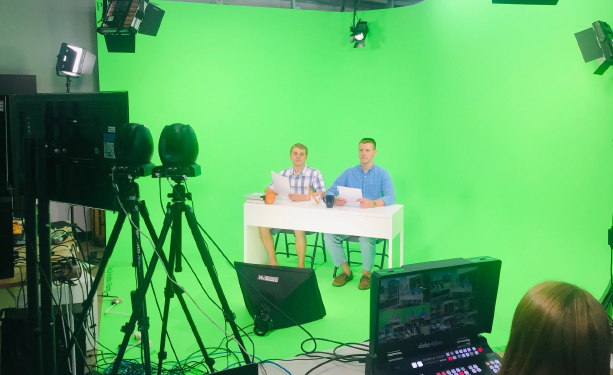
First, you will set up the background stand. The top of the background stand needs to be above the talent. The anchors can sit behind the desk, but the green screen should go on the floor as well to create a full virtual studio experience. We recommend using a green screen that is 10 feet wide and 20 feet long, which is a sufficient length to cover the flooring plus the height behind the talent and desk. The height of the green screen should be about seven feet tall, just in case the news anchors want to be standing up instead of sitting behind the desk.
Keep the screen clean and wrinkle-free. This will prevent unwanted shadows and reflections of highlights. Your even lighting set up will benefit from an even surface. Wipe your shoes clean before stepping onto the green screen for filming.
Lighting
Lighting a green screen is very similar to lighting any set – you have a key light for your talent, fill light for your background, and a back light. Using the four-light Datavideo LED kit, you will have enough light to key one or two subjects from the waist up.
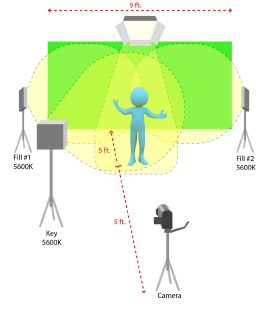
When lighting for chroma key, the screen and the subject must have lighting set up separately. Lighting first for the screen, and then for the subject, which is your Reporter.
The first two lights will be used to light the background. Place the light stands five feet from the green screen, with the light stands at opposite edges of the green screen, parallel with the background stands. Set up the lights at full intensity and raise them to a height of six feet. With the lights facing forward perpendicular to the green screen, the center will have less light than the sides. Angle each light inward until the background is even. The lights should not be angled more than 45 degrees to achieve this effect. Do your best to get even lighting for your background. Any parts of the screen that are brighter, commonly referred to as hotspots, cause variation in the screen’s overall color. The shadows and highlights may appear only partially keyed, leaving pixels of green mixed with your background. Your talent should be at least four to five feet from the screen.
The key light for your talent should not cast a shadow on the background. The key light should also be set up at six to seven feet high and angled downward towards your talent from either the left or right side. Placing your talent between the fill lights on the background, but parallel to their position on the green screen, should cast some of the fill light on their sides and shoulder. This will help light your talent with some of the fill light and also help separate their shoulders and sides from the background.
Placing a backlight behind your talent opposite of the camera will help make a better key. It is recommended to use daylight temperature lights and to set your camera to daylight white balance, or 5600K. Your backlight can be tungsten, or more orange in color, which will help reduce the amount of green cast on your talent from the background. This will also add a healthy glow behind your talent, separating them from the background. Backlight at 3200K is especially helpful when lighting talent with blonde hair or light skin complexions. The background should be less bright than the subject. If all the lights are at full intensity, and five feet from the screen with your talent, while the key light is only three feet away from your talent, this should have the desired result. You may need to adjust the intensity of the fill lights to 75%, depending on your talent's skin complexion and the material of the green screen. Use the camera to aid with final adjustments for lighting. The camera will see exposure on the screen differently than the human eye.
Camera Set Up
It is important to avoid overexposure of the green screen. A bright green screen will result in the camera picking up too much green light, and also green light reflecting back onto the talent – most noticeably in the hair and shoulders. White balance is very important for a Green Screen set up. Using a white piece of paper to white balance the camera and holding the white piece of paper where the news reporter’s face would be will achieve accurate results. The LED light should project light on the talent and background that is at 5600K, daylight white balance. Slight variations in the settings on your camera and any fluorescent lights in the classroom may shift the white balance. 6500K may be an option on your camera, and this will work as well.
To emulate a virtual studio set, set one of your PTC-140 cameras to be a wide shot and the other PTC-140 camera to be a tight, close-up shot. This way, you can switch from the wide shot to a close-up shot during your production. Make sure to have two different virtual backgrounds you can use to replace the green screen with. One background that is for a wide shot and the other for a close-up. So, when you are switching from a wide to a close-up shot, the background will change as well to make it look as realistic as possible to create a virtual studio chroma key production.