
Typically, still images and picture-in-picture (PIP) are used to
provide visual support for topics delivered by the news anchor. For
example, when an anchor reports on a football game, an image
of the football team, or player, can be shown next to the anchor on
the screen (See Figure xx). Adding still images to your video is an
excellent way to enhance the visual impact of your production. Still
images are frequently found in file formats such as a jpg, tif, png,
gif, etc. Your HS-2600 allows you to store multiple still images into
its memory bank. Once images are added to the HS-2600 as one
of the input sources, there are many ways you can make use of them
in your production. In this chapter, we will learn how still images
can be used as a source for PIP.
First, let’s learn how to add still images to the HS-2600 switcher.
Learning how to operate the HS-2600 switcher to add still
images and adding Picture-in-Picture (PIP) feature to the
morning announcement shows, is enforcing students to become
Empowered Learners; students may use visual elements to
deepen the production, making this not only a broadcast for
information, but also, entertaining and engaging.
Adding Still Images to the HS-2600
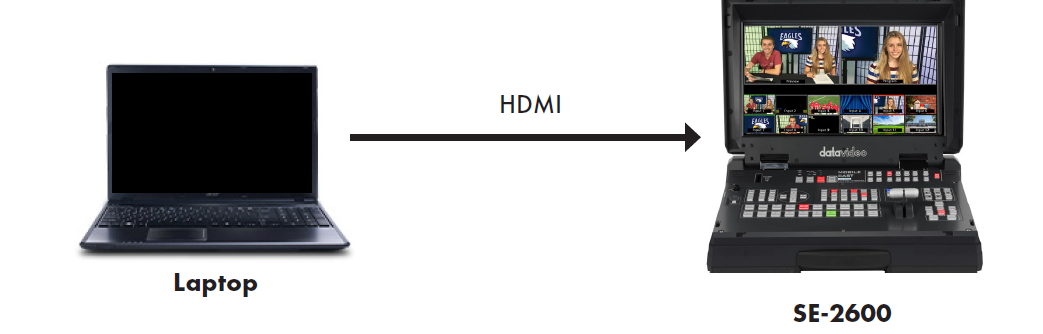
As you already know, the Datavideo HS-2600 has twelve video inputs. The easiest and fastest way to add still images is to play them from a laptop as one of the HDMI inputs to the HS-2600.
1. Simply connect a laptop to the HS-2600 using an HDMI cable. If you cannot see the laptop interface on the multi-view of the HS-2600, please check the screen resolution of the laptop. The screen resolution of the laptop must match the resolution of the HS-2600. If you have set the HS-2600 to 1080p59.94 or 1080p60, please set the screen resolution of the laptop to 1920x1080. If you have set the HS-2600 to 720p59.94 or 720p60, please set the screen resolution of the laptop to 1280x720.
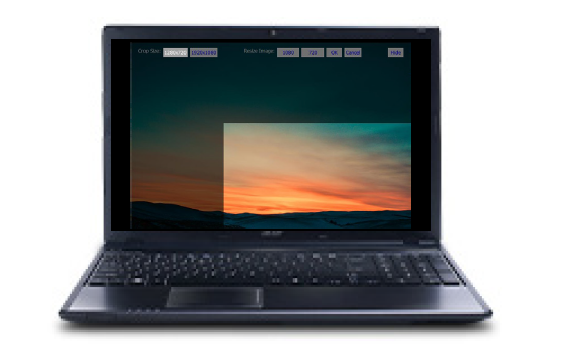
2. Next, open the still image that you want to use using Windows Photo Viewer (PC) or Preview/Photos app (Mac). You will now see the image as one of the input sources on the multi-view of the HS-2600. If your image does not appear full screen (bars on top/bottom or right/left), please resize the image to either 1920x1080 or 1280x720 using photo editing software.
Another way to add images to the HS-2600 is to save them onto the switcher memory. You should now see a still image as one of your inputs on the HS-2600 multi-view. Next, we are going to load this image into the switcher memory.
- Press the Menu button on the HS-2600 to bring up the menu options.
2. Use the down arrow key to scroll down to the Still menu option. Press Enter.
3. Use the down arrow key to scroll down to Save Still. Press Enter, and scroll through the options to select the input number where the laptop is connected. Press Enter.
4. Use the right arrow key to go to Still. Choose a Still memory slot number you want to save. Press Enter twice. The selection will turn red to indicate that the image is being saved into a still memory slot.
You can repeat these steps to save up to 1,000 still images. After saving the still images into the switcher memory, here’s how you can load them into the input slots when you are ready to use them.
1. Within the same Still menu of the HS-2600, go to Load Still. Press Enter, and scroll through the options to select the input number where you want the still to be loaded. (Figure 7.3)
2. Choose a Still memory slot that you want to load. Press Enter twice. The selection will turn red to indicate that the still is being loaded. You will now see the still being loaded as one of the inputs on the multi-view. Press the Menu button to exit out of the menu.